It’s essentially a beefed up internet phone connection. It makes connecting to ISDN lines much easier, and cheaper, but you can also use this site to connect to people’s phones and get better recording quality than you usually would.
What would help my ipDTL interview sound the best?
Everything that applies to recording regular phone calls applies here – if the person has a bad signal, the recording will sound terrible. If they’re at a protest or distracted, you won’t get good sound. Ideally you’d pre-interview the caller for five minutes and check the connection and sound quality.
You should also have a decent mic set up and have access to a stable internet connection.
NOTE: you must make your reservation a minimum of 2 hours in advance.
After you’ve made your reservation you will see a confirmation on the website, you will receive an email confirmation, and you should be able to see your reservation slot on the facilities’ reservation calendar.
Only one person can log into ipDTL at once. If your interview is slated for one hour, do not exceed that hour. Try to leave five minutes early so the next person can log in. DO NOT EXCEED your slated interview time.
The interface for ipDTL is a little confusing to use – so contact engineering for a quick rundown.
Connecting to a ipDTL’s Remote Account:
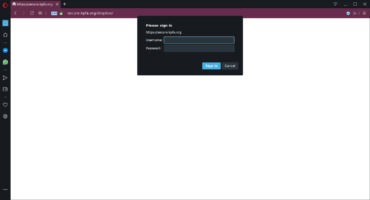
Open ipDTL located on the desktop. A web browser (chrome) will open prompting you to log in (login credentials should populate automatically, if not, ask an engineer to assist you).
Connecting to a Contact:
Once logged in you should see a box of “destinations,” or contacts to choose from. This is where the host or guest will appear when they are connected to ipDTL. Click on their handle to complete the connection.
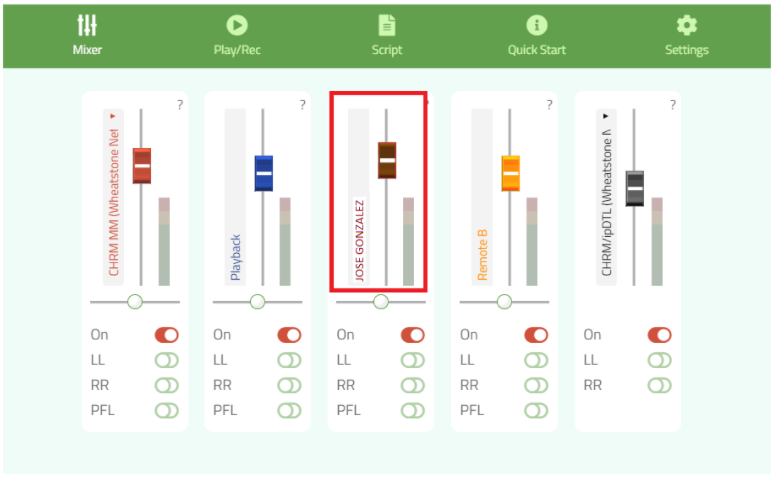
Turn on and bring up ipDTL’s fader to put the call on the air.
Contact Connecting to Us:
Using a Chrome browser, contact should connect to kpfa.org/connect and follow the on-screen instructions.
Making a Phone Call Through ipDTL:
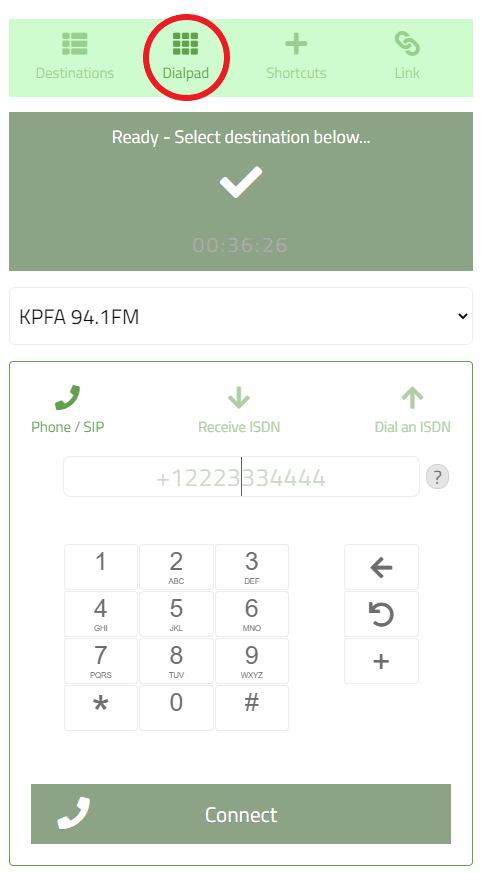
Click on the Dialpad button and a dial pad should appear.
To make domestic calls you must enter +1 followed by the area code and number. Click connect to complete the call.
To make international calls you must enter + followed by the country code and number. Click Connect to complete the call.
Turn on and bring up ipDTL’s fader to put the call on the air.
Making a Conference Call:
Once connected with a caller, simply click on another “destination” or contact. Similarly, if you are using the dialpad, connect with a caller then simply dial and connect to another number to establish a conference call.
Communicating with your Guest Offline:
Once connected you can choose to communicate with the caller via chat by clicking on the Chat icon . (Chat option is not available for calls made via dialpad.)
NOTE: If someone is connected to the other KPFA ipDTL accounts, you will notice that their names appear on the chat as well. Make sure that when you use the chat function, you are directing your messages to your guest only and not sending messages to everyone in the chat.
TIPS
If you have the ability to plug your computer into your internet router via an ethernet cable, do so (and then turn off your wi-fi). If not, do what you can to ensure the most reliable wi-fi connection possible.
It is absolutely essential that you use Google Chrome web browser when using ipDTL.
Close all unnecessary windows/tabs and computer applications.
Make sure that both you and your guest follow the on-screen instructions when connecting to ipDTL ensuring that the input and output sources are configured correctly.
In order to avoid feedback and/or echoes, the use of closed back headphones is recommended.
If the caller’s audio is low and you’ve tried bringing up the fader, try increasing the caller’s gain by bringing up their fader on ipDTL’s mixer. The caller’s handle should appear next to the fader.
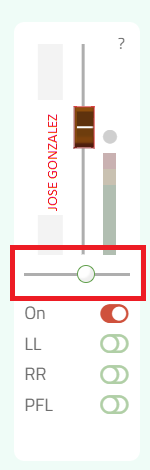
When looking at the faders in ipDTL’s mixer, make sure that the white circle under your call’s slider is centered. It should be by default, but if it is accidentally moved, it will cause the caller to come in higher on the left or right channel.
Today on the show: The Pentagon Puts 8,500 Troops on ‘High Alert’ Amid Ukraine Tensions…IS THE U.S. STEAMING TOWARDS ANOTHER MILITARY CONFRONTATION ON HEELS OF ITS 20 YEARS AFGHANASTAN DISASTER: We’ll speak to Nation Magazine publisher and columnist, Katrina Vanden Heuvel about the volatile situation: Also Pulitzer winning-reporter David Cay Johnston on the latest twists … Continued
QuaranPalooza Live Stream Music Fest Tickets available @ https://www.eventbrite.com/e/january-2022-quaranpalooza-livestream-music-fest-tickets-250110877367 (shortened URL - https://bit.ly/janqptickets)
We speak with R&B experimentalist and Jazz artist Georgia Anne Muldrow about honoring her parent’s musical legacy, life during COVID and creating art. Yoshi’s event with Georgia Anne Muldrow this Tuesday, Jan. 25th @8pm: https://yoshis.com/events/buy-tickets/georgia-anne-muldrow-overload/detail
On Friday’s show, I’ll speak to Palestinian climate activist Dr. Mazin Qumsiyeh on the discussing the perseverance of his organization, Palestine Institute for Biodiversity and Sustainability. And, I’ll have a conversation with Mathias Rittgerott, Campaigner for the German-based NGO Rettet den Regenwald/Rainforest Rescue on their latest effort to get the United Nations to stop contracting … Continued
Guest: Steven Rosenfeld is a senior writing fellow and the editor and chief correspondent of Voting Booth, a project of the Independent Media Institute. He is a national political reporter focusing on democracy issues. Image: Wikipedia (GPA Photo Archive, https://flic.kr/p/BrRNcA; CC BY-NC 2.0, https://creativecommons.org/licenses/by-nc/2.0/)
Below is a list of everything a KPFA Program must have in order to successfully create content, communicate with staff and listeners and promote the show.
Every Program must have the following:
Email Account
For every show host, producer and website assistant.
On Friday, I’ll speak to the communications director for climate policy think tank The Climate Center’s Ryan Schleeter on Governor Gavin Newsom’s $22.5 billion climate budget and what that means for California. We’ll switch gears and speak to Global Forest Coalition’s Simone Lovera on their latest collaborative report entitled: “Gender Justice and Climate Action: A … Continued
Offsite Submission (outside of KPFA’s building):
Name your program as follows “Evergreen#-Show.mp3”
for example:
EVERGREEN1-PROJECTCENSORED.mp3, EVERGREEN2-PROJECTCENSORED.mp3, and EVERGREEN3-PROJECTCENSORED.mp3
EVERGREEN1-LETTERSANDPOLITICS-INTRO.mp3 and EVERGREEN1-LETTERSANDPOLITICS-SHOW.mp3 for programs with a news billboard
EVERGREEN1-INYOUREAR-HR1.mp3 and EVERGREEN1-INYOUREAR-HR2.mp3 for Music programs with multiple hours.
REMEMBER
Public Affairs Programs: Save your programs as .mp3 – Mono 16 bit 44.1kHz (.wav files can not be uploaded)
Music Programs: Save your programs as .mp3 – Stereo 16 bit 44.1kHz (.wav files can not be uploaded)
Bit Rate: 192kbps or greater Constant Bit Rate (CBR) mp3
Sample Rate: 44.1khz, Normalized to -24 LUFS
Bit depth: 16 bit
Length: 29 minutes or 58 minutes depending on your shows allocated time.
File Name: Evergreen#-Show.mp3
Deadline: 12pm noon.
Deletion: Files are stored for 3 days before deletion
Notify the Operations Department by emailing us at [email protected].
Onsite Submission (within KPFA’s building):
Save your program on Temps! in “#FOR BROADCAST ON AIR” within the folder ‘#Show Evergreens – DO NOT DELETE’. Please create a folder titled the name of your show.
Name your program “EVERGREEN#-PROGRAM.wav”
for example:
EVERGREEN1-PROJECTCENSORED.mp3, EVERGREEN2-PROJECTCENSORED.mp3, and EVERGREEN3-PROJECTCENSORED.mp3
EVERGREEN1-LETTERSANDPOLITICS-INTRO.mp3 and EVERGREEN1-LETTERSANDPOLITICS-SHOW.mp3 for programs with a news billboard
EVERGREEN1-INYOUREAR-HR1.mp3 and EVERGREEN1-INYOUREAR-HR2.mp3 for Music programs with multiple hours.
REMEMBER
Public Affairs Programs: Save your programs as .wav – Mono 16 bit 44.1kHz (The on air computer does not play 32 bit)
Music Programs: Save your programs as .wav – Stereo 16 bit 44.1kHz (The on air computer does not play 32 bit)
Notify the Operations Department by emailing us at [email protected].
Bit Rate: 192kbps or greater Constant Bit Rate (CBR) mp3
Sample Rate: 48khz, Normalized to -24 LUFS
Bit depth: 16 bit
Length: 29 minutes or 58 minutes depending on your shows allocated time.
File Name: Time-DAY-Date-Show.mp3
Deadline: 12pm noon, one Business Day prior to broadcast.
Deletion: Files are stored for 3 days before deletion
Notify the Operations Department by emailing us at [email protected].
Onsite Submission (within KPFA’s building):
Save your program on Temps! in “#FOR BROADCAST ON AIR” within the broadcast folder date. Please make sure to create a folder titled “Time and Show” within the date of broadcast. For example, “11AM Voices of the Middle East”
Name your program “Time-DAY-Date-Show.wav”
for example:
1PM-FRI-20200320-PROJECTCENSORED.wav
10AM-THURS-20200319-LETTERSANDPOLITICS-INTRO.wav and 10AM-THURS-20200319-LETTERSANDPOLITICS-SHOW.wav for programs with a news billboard
4PM-SAT-20200321-INYOUREAR-HR1.wav and 5PM-SAT-20200321-INYOUREAR-HR2.wav for Music programs with multiple hours.
IMPORTANT
Public Affairs Programs: Save your programs as .wav – Mono 16 bit 48kHz (The on air computer does not play 32 bit)
Music Programs: Save your programs as .wav – Stereo 16 bit 48kHz (The on air computer does not play 32 bit)
Notify the Operations Department by emailing us at [email protected].
Technical Issues with KPFA’s Dropbox
In the event of technical issues with KPFA’s Dropbox, please email [email protected]
Use WeTransfer or your @kpfa.org account to send your program to [email protected]. WeTransfer/[email protected] should be used as a backup.
 . (Chat option is not available for calls made via dialpad.)
 TIPS
TIPS