0:08 – Mondays with Mitch: latest on the Congressional aid package, what benefits are available and how are they accessed. 0:34 – Tenants Rights Clinic Lupe Arreola (@m_lupearreola) is the Executive Director of the statewide tenants’ rights organization Tenants Together (@TenantsTogether). 1:08 – New COVID-19 study: Black and Latino workers are less likely to be … Continued
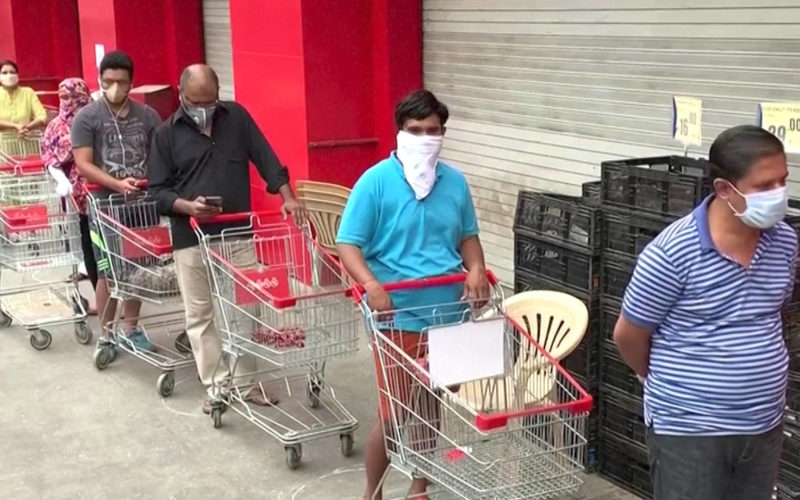
As the coronavirus pandemic spreads around the world, we look at India, which is now under the largest lockdown in human history, with 1.3 billion people ordered to shelter in place. As the country’s economy and daily life come to an abrupt halt, hundreds of millions of Indians who live hand to mouth have been … Continued
0:08 – The Senate just passed a $2 trillion relief package for COVID-19, what’s in it and what are the priorities economically, and politically. Dean Baker (@DeanBaker13) is a senior economist at the Center for Economic and Policy Research John Nichols (@NicholsUprising) is National Affairs Correspondent for The Nation. 0:34 – COVID-19 and your mental … Continued
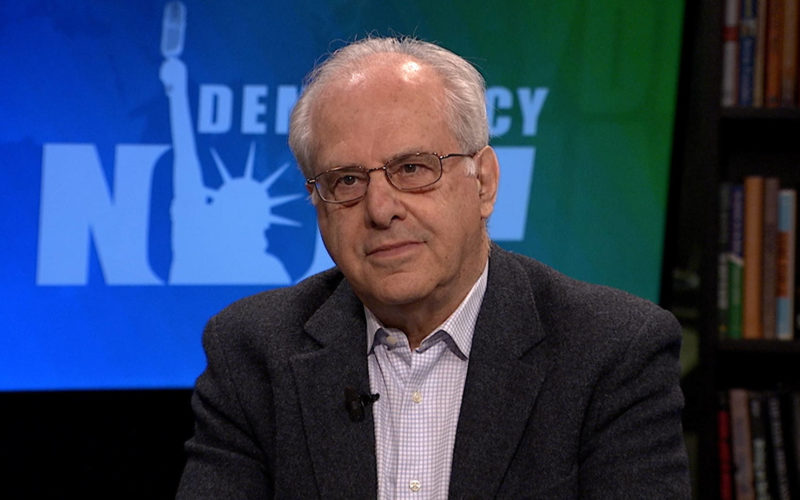
0:08 – COVID-19, the economy, and what real government relief might look like Richard Wolff (@profwolff) is a Marxian economist, professor emeritus at University of Massachusetts Amherst, and co-founder of Democracy @ Work. He is also the host of Economic Update, on KPFA Fridays at 10am. 0:34 – Q&A: COVID-19 and staying healthy Art Reingold … Continued
0:08 – Mondays with Mitch: Congress in chaos, now debating a nearly $2 trillion relief package and Sen Rand Paul testing positive for coronavirus and more Senators in quarantine. We discuss the government relief plan, what’s at stake, Democrats push back against big bailouts for corporations, and what’s still unknown, with Mitch Jeserich. 0:34 – … Continued
Use this troubleshooting guide if your call settings do not seem correct. Check settings on ALL relevant sources (Soundforge, IPDTL, Skype, on the board itself, etc)
FIRST: Open recording software (ie SoundForge/Acoustica/Hindenburg)
Standards
Skype Settings
Computer Settings
Soundforge Settings
Acoustica Settings
FADERS: Do not use fader labeled “comp”. We only use that to play back audio, not to record interviews. “Comp” fader should stay at 0.
CALLER MODULE:
Skype: Use Caller Module 3.
Ensure the entire caller system button is on, and that the appropriate red module 3 button is on, and volume is up for that module.
Watch the recording levels, make sure audio has reasonable gain (-20db to -3 db ), but does not clip
-Caller levels can be adjusted via Caller Module
–Settings can be adjusted by clicking the 3 dots in the upper left corner of Skype, to the right of your username
-Click “Audio & Video” tab
–“Microphone” setting should be: “Mix-Minus In”
–“Speakers” setting should be: “Mix Out”
-Right click the speaker image in the bottom right toolbar of the entire screen, and click “Open Sound Settings”
– “Output device” settings should be: Mix Out
– “Input device” setting should be: “Mix-Minus In”
Create a new file and click “Record”
In the “record” window’s upper left corner, click “Audio input”. The top setting should be “Focusrite USB ASIO In”
If you made any changes click “OK”, otherwise click “Cancel”
*Monitor the recording levels
Create a new file and click “Record”
If the recording has trouble:
Close out of recording,
Click Options then Device Settings.
Device Settings window will pop-up, Ensure devices are “Focusrite USB ASIO”
If you made any changes click “OK”, otherwise click “Cancel”
*Monitor the recording levels
Troubleshooting Guide for IPDTL Calls (phone or ISDN)
Use this troubleshooting guide if your call settings do not seem correct. Check settings on ALL relevant sources (Soundforge, IPDTL, Skype, on the board itself, etc)
FIRST: Open recording software (ie SoundForge/Acoustica/Hindenburg)
Standards
IPDTL Settings
Computer Settings
Soundforge Settings
Acoustica Settings
FADERS: Do not use fader labeled “comp”. We only use that to play back audio, not to record interviews. “Comp” fader should stay at 0.
CALLER MODULE:
iPDTL: Use Caller Module 3
Ensure the entire caller system button is on, and that the appropriate red module 3 button is on, and volume is up for that module
Watch the recording levels, make sure audio has reasonable gain (-20db to -3 db ), but does not clip
-Caller levels can be adjusted via Caller Module 3
–“Send Audio” should say “Mix-Minus in”
–“Receive Audio” should say “Focusrite Mix”
(or “Default: Focusrite Mix”)
-Right click the speaker image in the bottom right toolbar of the entire screen, and click “Open Sound Settings”
–Output device settings should be “Mix Out”
-Input device setting should be “Mix-Minus In”
Create a new file and click “Record”
In the “Record” window’s upper left corner, click “Audio input”. The top setting should be “Focusrite USB ASIO In”
If you made any changes click “OK”, otherwise click “Cancel”
*Monitor the recording levels
Create a new file and click “record”
If the recording has trouble, close out of recording, click Options then Device Settings.
Device Settings window will pop-up, Ensure devices are “Focusrite USB ASIO”
If you made any changes click “OK”, otherwise click “Cancel”
*Monitor the recording levels
Troubleshooting Guide for Landline calls (*Backup Only – if Internet goes down)
Use this troubleshooting guide if your call settings do not seem correct. Check settings on ALL relevant sources (Soundforge, IPDTL, Skype, on the board itself, etc)
FIRST: Open recording software (ie SoundForge/Acoustica/Hindenburg)
Standards
Phone Settings
Computer Settings
Soundforge Settings
Acoustica Settings
FADERS: Do not use fader labeled “comp”. We only use that to play back audio, not to record interviews. “Comp” fader should stay at 0.
CALLER MODULE:
Landline calls: Modules 1 or 2.
Ensure the entire caller system button is on, and that the appropriate red module 3 button is on, and volume is up for that module
Watch the recording levels, make sure audio has reasonable gain (-20db to -3 db ), but does not clip
-Caller levels can be adjusted via Caller Module 1 or 2 pots
-Adjust settings on board and make sure
SoundForge/Acoustica levels and settings are correct
-Right click the speaker image in the bottom right toolbar of the entire screen, and click “Open Sound Settings”
–Output device settings should be “Mix Out”
–Input device setting should be “Mix-Minus In”
Create a new file and click “Record”
In the “Record” window’s upper left corner, click “Audio input”. The top setting should be “Focusrite USB ASIO In”
If you made any changes click “OK”, otherwise click “Cancel”
*Monitor the recording levels
Create a new file and click “record”
If the recording has trouble, close out of recording, click Options then Device Settings.
Device Settings window will pop-up, Ensure devices are “Focusrite USB ASIO”
If you made any changes click “OK“, otherwise click “Cancel”
First and foremost, follow the station clock! The time below is synced with the station archiver and used by our automation system and board operators for transitions. This is important because you will need to start on time and end on time. Any deviation will negatively affect our website archives, airtime for promos and psa’s, and the programs before and after your show. If you need to see the time in a separate tab or in a larger size, please click the “The Station Clock” link below.
Secondly, connect to the On Air Studio at least 15 minutes before your show. If you experience any issues connecting, message the Engineering/Operations Department on the Slack channel #on-air immediately.
These pages address the needs of all live shows, and all your questions should be answered here. Our goal is to provide the listening audience with the smoothest-sounding, highest-quality show. They should not know there are issues in the background, and in order to accomplish this, you must dedicate two-thirds (2/3) to three-fourths (3/4) of your time to preparation. Remember, “Quality is respect for listeners!”
Before Your Show Checklist
Ensure you are technically trained and ready 1 week prior to your show.
For Remote Shows: Ensure your home studio is set up correctly.
Tools for Host Producers: Slack or Google Hangouts to communicate with the Board Operator Off-Mic and connect to the on-air studio.
For In-Studio Shows: Ensure you know how to use all applicable tools.
Tools for Host Producers: Studio Computer Logins, On-Air Studio Phone Module, and mute and talkback buttons.
Tools for Board Operators and Music Host Producers: Studio Computer Logins, On-Air Studio Equipment, On-Air Studio Phone Module, talkback, and dump buttons.
Runsheet and Credits – This is Mandatory.
Create and Submit Runsheets to [email protected]. We ask that you do this 30 minutes before your program.
For any show longer than 1 hour, please remember to play promos and station IDs at the top of every hour. AND you must end at the 58-minute mark of the final hour of your show.
Confirm that your guests’ contact information is correct and that you have a backup.
Whenever there is a problem connecting to guests, there are generally two problems.
The guest’s phone number or online account info is incorrect.
The guest is in a different time zone and is ready at a different time.
Write and confirm names for your show’s credits.
Prepare and Submit Sound Elements
Upload your sound to KPFA’s Dropbox 30 minutes before your program starts.
Links to online content.
Please ensure this content is not copyrighted, or you have explicit permission from the creator to use it.
Contact your board operator a week in advance for any special requests.
For any show longer than 1 hour, please remember to play promos and station IDs at the top of every hour. AND you must end at the 58-minute mark of the final hour of your show.
Abide by FCC and Station Policies and Guidelines with regard to:
No Station IDs unless your program is longer than 1 hour. Station IDs are already scheduled in automation between programs. If your show is longer than 1 hour, click here to learn more about the proper way to say the Station ID.
Music Programmers: Ensure your playlist is accurate.
Click here to edit your playlist.
After Your Show
Clean up the studio, wipe down any surfaces, and ensure you normalize all equipment you used. Normalize means returning all equipment to the state you found it in when you arrived.
If obscene, indecent, or patently offensive language was aired, fill out the Sensitive Language Report.
0:08 – With the shut-down of large events, newly laid off staff include stagehands, runners, concessions, security, technicians, artisans and more. Dan Ferreira is president of IATSE Local 107, the International Alliance of Theatrical Stage Employees, Moving Picture Technicians, Artists and Allied Crafts of the United States, Its Territories and Canada. 0:15 – Free educational … Continued
0:08 – We kick off the show, live from Cat’s kitchen and Brian’s living room! Hosts are remote today for the first time, but our producer is in studio with our engineer to line up listener calls. 0:10 – Primary elections disrupted by coronavirus, are civil liberties also at risk? Marcia Johnson-Blanco (@mfjblanco) Co-director of … Continued
0:08 – We’re going remote, as a precaution against the spread of coronavirus. Today, Cat hosts from her kitchen and tomorrow, both Cat and Brian will be hosting from home. 0:11 – The US Census Count has started, how are organizers planning to continue the count through the coronavirus and shelter-in-place orders. The answer: register … Continued