Downloading and Archiving Shows
Pre-recorded shows will be either emailed as an attachment or uploaded to Dropbox.
To download a show emailed as an attachment, hover your mouse over the attachment and click on the download button.
To download a show from Dropbox, open a Chrome window and click on the Dropbox bookmark link to be directed to KPFA’S Dropbox or visit secure.kpfa.org/dropbox. Once you have located the show, right click it and select the “Save link as…” option.
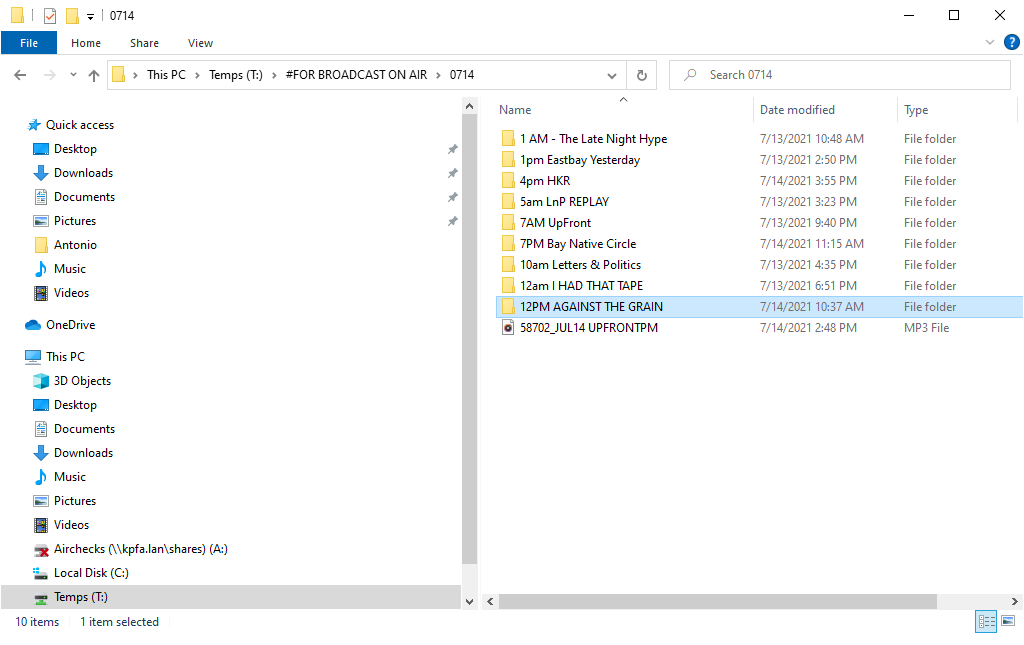
Once downloaded, locate the file. Go to TEMPS > #FOR BROADCAST ON AIR, open the day’s folder, and create a new folder for the downloaded show. As an example, If the pre-recorded show is Against the Grain which airs at 12:00 pm, name the folder “12PM AGAINST THE GRAIN,” and move your downloaded file here.
Loading Shows to DAD
If you need to upload the pre-recorded show for automation you will need to upload the file to DAD.
DAD will only accept WAV files labeled in a specific way. Let’s take Against the Grain for example. You will need to locate the downloaded file in the newly created folder:
(TEMPS > #FOR BROADCAST ON AIR > the day’s folder > 12PM AGAINST THE GRAIN).
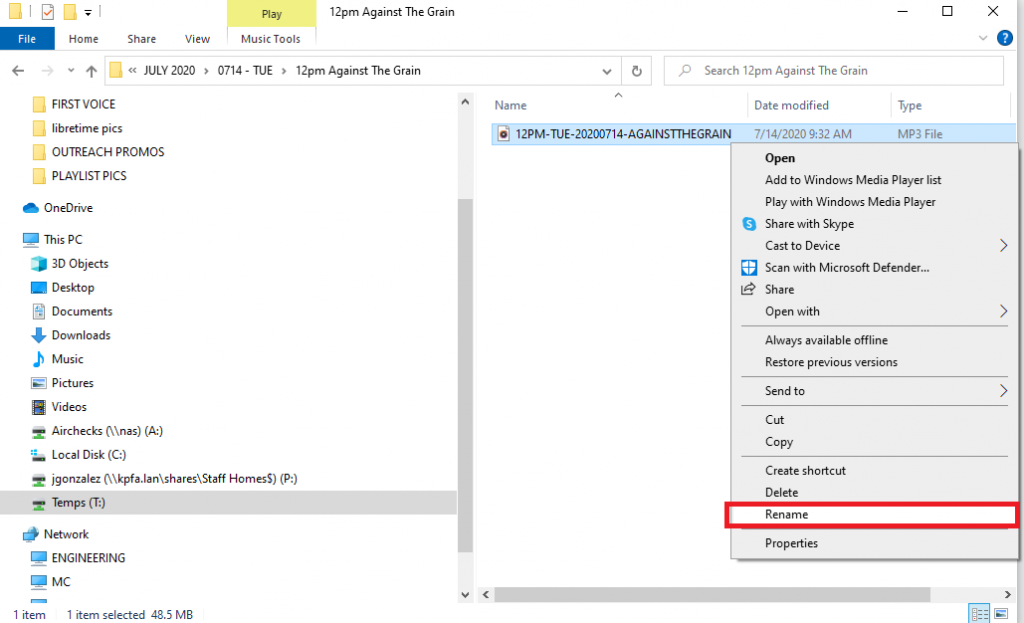
To rename the file, locate the file, right click it and click on the “Rename” option.
Let’s take for example a July 14th episode of Against the Grain.
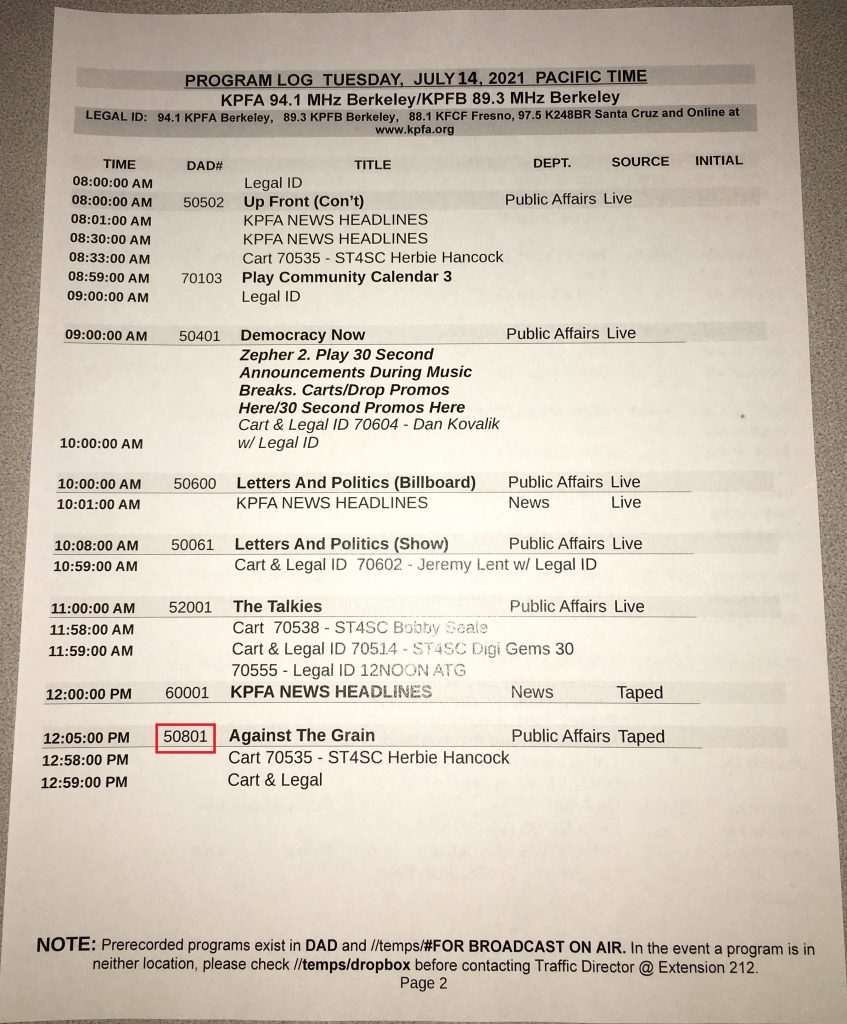
The file should be labeled 50801_JUL14-AGAINSTTHEGRAIN.
50801 is the show’s DAD number, followed by an underscore (_), the first three letters of the month (JUL), the day’s number (14), a dash (-), and the show’s name (AGAINSTTHEGRAIN).
The show’s DAD ID number can be found in the Program Log.

Once you have renamed your file, you can then head over to the engineer room’s DAD computer to upload your file.
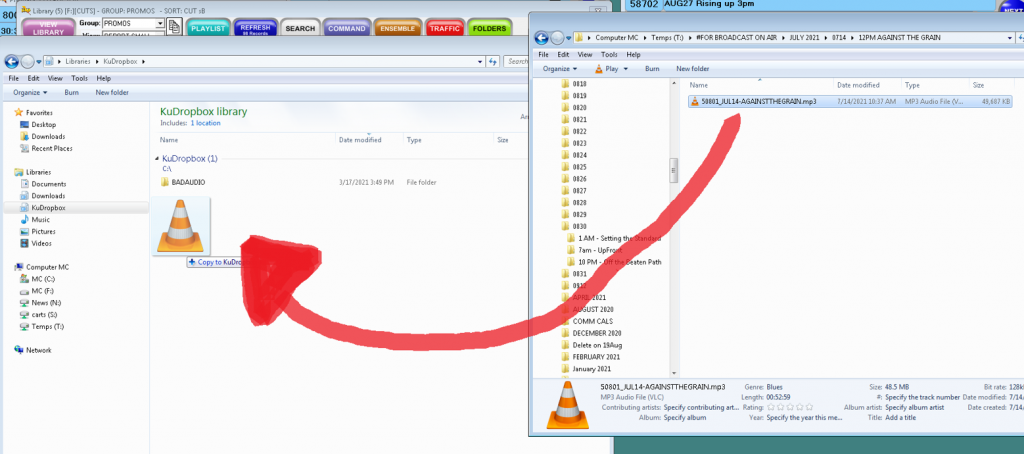
- Use the File Explorer tab to locate the file.
- Open up the KuDropbox window (should be one of the tabs on the taskbar, if not, open a File Explorer window and locate it under the “Libraries” tab).
- Drag and drop the file into the KuDropbox window, under the “BADAUDIO” folder.
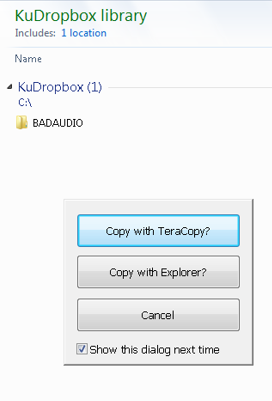
- A window should appear asking you how’d you like to copy the file. Choose “Copy with TeraCopy?” option. This will automatically convert your file from an MP3 to a WAV file.
Your pre-recorded show has now been added to DAD and will play in automation.
 TIPS
TIPS
-
- Pre-recorded shows are, for the most part, uploaded to DAD by the station’s Traffic Director. Only upload to DAD yourself if the Traffic Director is unavailable and are familiar with the process.
- Saving the shows to their respective folder in TEMPS > #FOR BROADCAST ON AIR acts as a safety net. If ever automation does not work, or the Traffic Director is not available and you have no time to enter the show into DAD for automation, you can manually play the file using a media player and potting up that PC’s fader.